MediBang Paint:Draw Art, Comic
- 3.7
- Rating
- 10.00M
- Installs
- Free
- Price

 Analysis by App-foxy
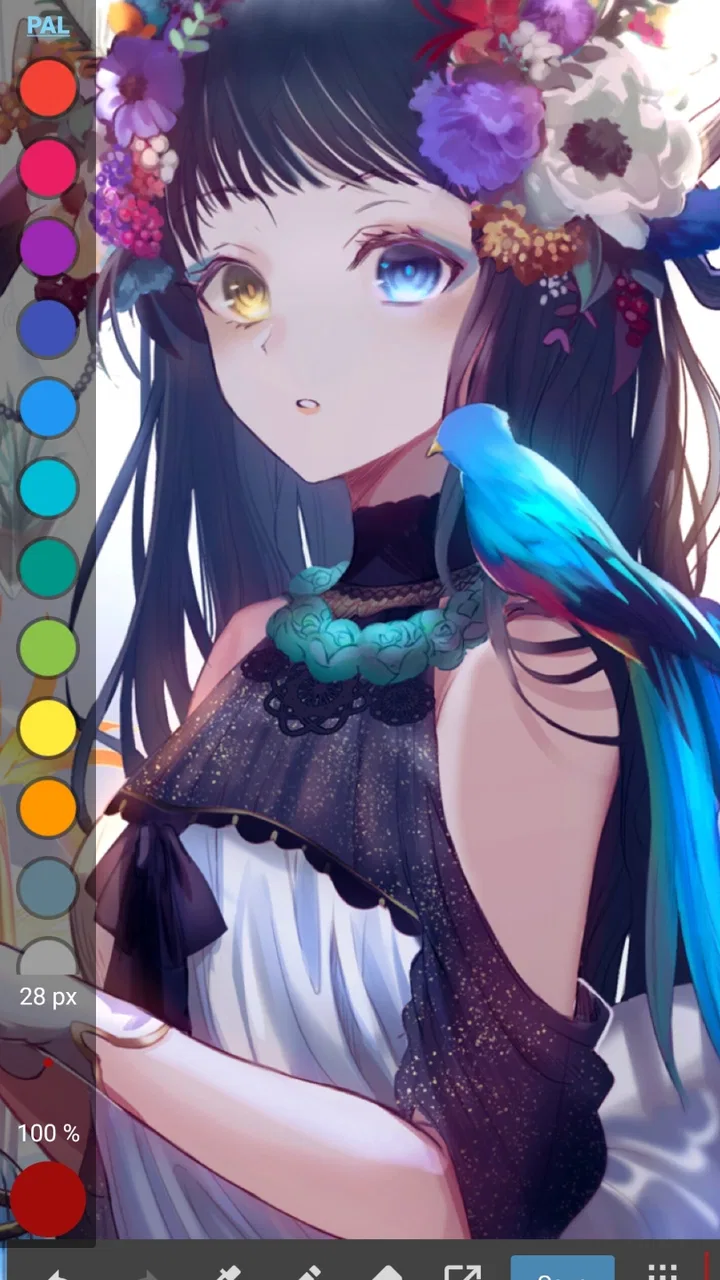
I spent time with MediBang Paint: Draw Art, Comic as a mobile drawing app, and my first impression was that it aims much higher than a simple digital sketchpad. It sits in the Art & Design category and is made by MediBang Inc., with tools intended for quick pencil work, polished illustrations, and comic-style projects. The free entry point makes it easy to try without committing money first, which matters when you are still deciding whether a mobile art workflow suits you.
What makes it interesting is the balance between approachability and depth. I could open it for a fast doodle, but the interface also invited more deliberate work with layers, brushes, selections, and comic-oriented organization. That flexibility is useful, although it also means the app can feel busy when you first arrive. If you want a very simple canvas with almost no setup, this may feel like more app than you need.
How the free access affects its value
The app itself is free to install, so the sensible way to judge it is by what can be done before spending anything. In my experience, the no-cost version is substantial enough for testing the drawing engine, learning the workflow, and completing personal sketches. That gives beginners a fair chance to discover whether the controls suit their hands and whether the mobile format is comfortable for longer sessions.
You May Also Like

 AccuWeather: Weather Radar
AccuWeather Review: A Quick, Clear Forecast for Everyday Decisions
For everyday plans, the best forecast is the one you can understand quickly. AccuWeather makes rain timing, radar, and local conditions easy to act on, with a few trade-offs.

 Hill Climb Racing
Why Hill Climb Racing Still Turns Crashes Into One More Run
A tiny car, a bumpy hill and one more upgrade: Hill Climb Racing keeps resurfacing because its simple chaos makes every near-miss feel personal.

 AliExpress - Shopping App
AliExpress Makes Global Shopping Feel Personal, but Shoppers Bear the Risk
AliExpress turns a global marketplace into a pocket-sized discovery engine. Its reach is useful, its shopping loop compelling, and its trade-offs easy to miss.

 Lords Mobile: Kingdom Wars
Lords Mobile Is a Kingdom-Building Routine, Not a Quick Match
A case-by-case verdict on the building, battles, device demands, and social commitments that make Lords Mobile rewarding for some players and exhausting for others.

 PDF Scanner app - TapScanner
TapScanner Makes Paperwork Easier to Capture, Check, and Share
TapScanner makes scanning with a phone feel less like a rescue operation and more like a dependable step in getting work done. Its capture tools are useful, though not flawless.

 Block Blast!
 Shows How Much a Puzzle Game Can Leave Out
A quiet grid game shows why puzzle players increasingly value instant clarity, repeatable skill and low-pressure play—and where the genre still needs to catch up.
More From Our News Desk
View All News


There are in-app purchases priced from $2.49 to $8.99 per item. I would treat those purchases as optional upgrades rather than an entry fee. The important distinction is that you can explore the core experience first, then decide whether an extra purchase solves a problem you actually have. I prefer this approach to paying upfront for an art app before knowing whether its brush response, menus, and canvas handling match my style.
The free model does require some discipline. If you are easily tempted by additional content or convenience features, the small individual prices can become less small when repeated. I would recommend using the free version for a complete trial period before buying anything. Make a finished drawing, test a comic page, and see whether the app saves you time. If it does not, paying for extras will not fix a mismatch in the basic workflow.
That makes the value question fairly personal. A casual doodler may never need to spend money. Someone who draws regularly may find a purchase worthwhile if it removes a specific limitation or improves the tools they use every day. The price alone does not make it a bargain; the value comes from whether those additions fit your actual process.
A practical first-session test
When I try a drawing app, I do not judge it from a blank canvas alone. I make a small illustration with a rough sketch, a clean line layer, flat color, and a few corrections. This exposes whether the app is comfortable for both loose and precise work. With MediBang Paint, that kind of test is more revealing than simply checking how many brushes appear in the menu.
I also suggest trying a short comic panel. The app’s identity is not limited to painting, and a panel quickly shows whether you understand its layer order, selection controls, and page-oriented tools. If you only plan to make occasional handwritten notes or basic doodles, a lighter drawing app may feel faster. If you want to build illustrations with several stages, the extra structure starts to make sense.
One useful habit is to separate rough construction from final lines instead of drawing everything on one layer. That sounds basic, but it changes how forgiving the app feels. You can reduce the visual clutter of a sketch while refining the final marks, and you avoid having to erase color or line work that should have remained untouched. This layered approach is one of the clearest reasons to choose a fuller art app over a basic phone sketch tool.
What I found useful in everyday drawing
The strongest part of the experience is its ability to support different levels of commitment. I could use it for a quick character pose during a spare moment, then return to a more involved illustration without changing apps. The pencil and pen approach feels familiar to anyone moving from paper, while the digital controls provide more room for correction than a physical page.
For a realistic everyday scenario, imagine waiting for a train and noticing an interesting face or outfit. You can make a rough study on the phone, keep the sketch loose, and later develop the idea at home. The app is especially useful when the goal is to capture a visual idea before it disappears, rather than produce a perfect finished image in one sitting.
I also liked the potential for separating stages of work. A rough layer can hold construction lines, another can carry the cleaner drawing, and additional layers can handle color or effects. The benefit is not just tidiness. It lets you experiment without damaging the decisions you have already made, which is valuable when you are still learning digital illustration.
Comic work brings a different kind of challenge. A single illustration can hide inefficient habits, but a page with several panels exposes them quickly. MediBang Paint is more appealing here because it encourages a workflow built around line clarity, repeated corrections, and organized elements. It is not merely a blank canvas with a few pens attached; it is trying to support artists who think in pages and sequences.
That said, I would not confuse a mobile comic workflow with a full desktop studio. A phone screen is still a phone screen. Detailed line art can become tiring when you zoom, pan, and constantly reposition your hand. A tablet with a larger display is a more comfortable choice for long sessions, while this app works best when portability matters or when your projects are moderate in size.
Small workflow choices that make a difference
My first practical tip is to keep the rough sketch visually quiet before beginning the final lines. Lowering its prominence, when the interface allows it, helps prevent the common problem of tracing too heavily over construction marks. It also makes it easier to spot whether the final drawing actually works rather than merely following the sketch.
My second tip is to use selection and correction tools before reaching for the eraser repeatedly. On a layered illustration, selecting a region or adjusting one stage can preserve nearby work. This is particularly helpful around hair, clothing edges, and flat-color areas, where a careless erase can create more cleanup than the original mistake.
My third tip is to save versions of important stages instead of treating one file as the only copy. A rough composition, clean line pass, and color pass represent different creative decisions. Keeping those stages distinct gives you an easier way to return to an earlier idea. It also reduces the frustration of discovering that a later change has weakened the drawing.
A fourth useful trade-off concerns brush choice. A brush that feels expressive for sketching may be too unstable for clean comic lines. I found it better to choose tools according to the stage of the drawing instead of forcing one favorite brush to do everything. This sounds obvious, but the app’s range of drawing options makes that distinction more important, not less.
Where the interface helps and where it slows me down
The interface gives the app room to grow with the user, but beginners should expect a learning period. Menus, layers, brush settings, and canvas controls are useful only after you know where they live. My advice is not to hunt for every feature on the first day. Learn the actions you need for one complete drawing, then add more tools gradually.
That approach also answers a common question: is it suitable for someone who has never used digital art software? Yes, if that person is willing to learn a few concepts such as layers, opacity, selection, and undo history. No, if they expect every tool to behave like a physical pencil with no interface decisions. The app is approachable, but it is not completely frictionless.
Touchscreen drawing introduces another limitation. Finger input is fine for rough ideas, but precise work is more comfortable with a compatible stylus or a larger device. The app can still be useful without specialist hardware, yet the quality of the experience depends heavily on how accurately you can place marks. I would not buy a phone specifically for this app unless drawing is already a serious priority.
Performance expectations should also be realistic. A small sketch with a few layers is a different task from a large, detailed illustration with many edits. Mobile art applications have to work within the limits of a handheld device, and complicated projects naturally demand more patience. If your normal work involves very large canvases, extensive layer stacks, or advanced production management, desktop software may be the better primary tool.
How it compares with simpler alternatives
Compared with a basic notes app or a minimal sketching tool, MediBang Paint offers a much more deliberate art workflow. The trade-off is speed: a simple app can be open and understandable almost immediately, while this one rewards time spent learning its structure. I would choose the simpler option for quick annotations and disposable doodles.
Compared with a heavyweight desktop illustration program, MediBang Paint is easier to carry and less intimidating for mobile practice. It does not replace the comfort of a large monitor, a full keyboard, or a professional desktop setup. Its advantage is the chance to work when those things are unavailable. For many people, that convenience is not a minor feature; it is the reason a drawing gets made at all.
Against other mobile painting apps, the decision comes down to priorities. If you mainly want natural painting and broad color experimentation, an app focused on brush simulation may suit you better. If you want sketches, clean lines, layered illustrations, and comic-minded work in one place, MediBang Paint has a clearer reason to exist. I would not select it solely because it has many tools; I would select it because those tools support a particular kind of organized drawing.
Who will get the most from it
This is a good fit for beginners who want to move beyond one-layer doodles, students practicing illustration on a phone or tablet, and comic artists who need a portable place to develop pages. It can also work well for hobbyists who alternate between quick sketches and longer projects. The free starting point makes experimentation less risky, especially if you are unsure how serious your mobile art habit will become.
It is also useful for people who think visually throughout the day. You may not finish a drawing during a short break, but you can record a pose, composition, prop, or facial expression and return later. That makes the app more valuable as an idea-capture tool than its store summary alone suggests.
I would be more cautious about recommending it to someone who wants a completely distraction-free, paper-like experience. The layers and controls are strengths for structured work, but they add decisions. Likewise, a professional artist who depends on a very specific desktop pipeline may find the mobile environment limiting rather than liberating.
Parents and younger users should also pay attention to the Teen content rating. That rating is part of the app’s store profile, so it is worth checking whether it suits the intended user before installing it. The app is free, but any in-app purchase should still be considered deliberately rather than assumed to be part of the basic experience.
My verdict on paying, keeping, or skipping it
After using it as both a sketchbook and a more organized illustration workspace, I see MediBang Paint as a strong free option for people who want room to improve. Its best value is not that it promises every possible art feature. Its value is that it lets you start casually, then develop a more disciplined workflow without immediately moving to expensive desktop software.
I would keep it installed if I wanted to practice character drawing, build comic pages, or capture ideas away from my desk. I would consider an in-app purchase only after identifying a repeated need that the purchase addresses. Since the available items range from $2.49 to $8.99, the sensible approach is to judge each one by the time or frustration it saves rather than buying out of curiosity.
The app has a 3.7 average from around 302 thousand ratings and more than 10 million installs, which suggests a large audience but not universal satisfaction. I read that combination as a reminder to set realistic expectations: it is capable, but its interface and mobile constraints will not suit everyone. Its current version is 28.24, and it requires Android 8.0 or later, so compatibility is straightforward for supported devices but still worth checking before installation.
My final recommendation is simple: try it if you want a free, flexible drawing workspace with a clear place for layered illustration and comics. Skip it if you only need a two-button doodle pad or if your work demands a full desktop production environment. For everyone in between, the free access gives you enough opportunity to make that decision honestly. The best reason to use MediBang Paint is not its feature count, but the way it can turn a passing sketch into a repeatable creative workflow.
FAQs for MediBang Paint:Draw Art, Comic
01What features does MediBang Paint offer for digital artists?
MediBang Paint provides a comprehensive set of tools for digital artists, including over 50 brushes, a variety of comic creation tools, and numerous fonts. It also offers cloud storage, allowing users to save and access their work across different devices easily. Additionally, the app supports layer management and various file formats for export.
02Is MediBang Paint free to use, and are there any in-app purchases?
MediBang Paint is free to download and use, providing access to a wide range of features without any cost. However, there are optional in-app purchases available, such as additional brushes, backgrounds, and other resources, which can enhance the user experience for those willing to invest in extra tools.
03How user-friendly is MediBang Paint for beginners in digital art?
MediBang Paint is designed with a user-friendly interface that caters to both beginners and experienced artists. It includes tutorials and guides to help new users navigate the app and learn how to utilize its features effectively. The intuitive layout makes it easy for beginners to start creating art without being overwhelmed.
04Can I use MediBang Paint on multiple devices, and does it support synchronization?
Yes, MediBang Paint supports multi-device use and offers synchronization through its cloud storage feature. Users can start a project on one device and continue on another, ensuring seamless transitions. This feature is particularly useful for artists who work on both mobile and desktop platforms.
05What platforms is MediBang Paint available on, and does it offer cross-platform compatibility?
MediBang Paint is available on Android, iOS, Windows, and macOS, offering cross-platform compatibility. This allows users to work on their projects across different operating systems without losing progress. The app’s versatility makes it accessible for artists using various devices to create their digital artwork.
Pros
- User-friendly interface for beginners.
- Wide variety of brushes and tools.
- Cross-platform cloud saving.
- Regular updates with new features.
- Free with optional premium features.
Cons
- Ads can be intrusive at times.
- Requires internet for full features.
- Limited text tool customization.
- Occasional lag on older devices.
- Some features locked behind paywall.

MediBang Paint:Draw Art, Comic
Gallery